Navigating Mythradon
Mythradon is a user-friendly web-based application that is designed to run on a variety of devices and browsers. This allows you to easily access your Mythradon system from any device with an internet connection, including smartphones, tablets, laptops, and desktop devices. Mythradon's interface combines menus and shortcut buttons with intuitive grids and forms, making it easy to navigate and use.


As a modern Single Page Application (SPA), Mythradon offers fast and responsive performance. Unlike traditional Multi-Page Applications (MPAs), Mythradon does not require page refreshes as you navigate through the application, providing a seamless and efficient user experience. Mythradon is also responsive, automatically adjusting to the screen size of the device you are using. For a list of supported browsers, please see the Mythradon Supported Browsers guide.
Menus
In Mythradon applications, menus can be displayed in two layouts: horizontally across the top of the interface or vertically along the left-hand side.
As a system administrator, you have full control over the menu structure. You can customise it by rearranging menu items and sub-items to better align with your organisation's workflow or user preferences.
For detailed instructions on managing and customising menus, refer to the Menus guide.


Quick Create


Mythradon features a convenient Quick Create menu located at the top of the application. As shown in the image, this menu allows you to quickly create new records, such as Accounts, Contacts, Leads, Opportunities and Cases, without having to navigate away from the current page. The Quick Create menu is an efficient way to create new records while maintaining context within the application. For more information on controlling the entities available on the Quick Create menu, please see the User Interface Settings) guide under the section on Quick Create lists.


Follow Records
Those, who work with sales, know how important it is to monitor and stay informed about the real-time activities related to Accounts, Contacts, Leads, Cases etc., because quick access to such data influences both sales efficiency and their productivity. To assist with this Mythradon has several Follow Record features:
- Follow Selected Record
- Global Auto-Follow
- Auto-Follow New Entity Types
- Auto-Follow After Posting in Stream
Follow Selected Record
The simplest method to begin tracking a specific record is by clicking the Follow button located in the top right corner of the desired record entry detail view. Once you've initiated tracking for the record, you'll have visibility into all record-related actions within the Activity Stream Dashlet on your homepage. Simultaneously, you'll receive notifications regarding changes made by other users to the audited fields of the record through the Notification Centre.


Audited Fields
System Administrators can configure which fields are tracked for auditing purposes. Learn how to enable audit tracking for a field.
Global Auto-Follow
If you want to see the information only about all the new Leads no matter by whom they were created, Global Auto-Follow is exactly the thing you need. To configure it, you simply have to choose the entity types you wish to follow.
- Select
Preferencesfrom the Menu Button - Click the
Misctab - Edit the
Global Auto-Followfields as necessary - Click the 'Save' button


Once saved you will receive notifications about all records belonging to the specified entity type and track all the changes related to these records in the Stream.
Enable Stream to Follow
An entity must have the Stream feature enabled in order to support following. System Administrators can enable the Stream for most entities through the Entity Manager, allowing users to follow records and receive activity updates.
Follow Entity Types
In cases where you only want to follow the creation of a few records, the first-mentioned method is the most convenient. If you want to track the information about dozens or even hundreds of different records which may be created every day? In such a situation, the best thing is to configure the Entity Level Auto-follow feature.
- Select
Preferencesfrom the Menu Button - Edit the
Auto-follow created records of specific entity typesfields as necessary - Click the 'Save' button


Auto-follow After Posting in Stream
Let's imagine that you're a sales manager and you've noticed that someone from your sales department still hasn't completed the task related to a certain Contact. In such a case, you can leave a message for him in the Stream of this Contact to remind him about it. In order to see whether the task was completed and all the further changes, you may configure the auto-follow option. Just check the Auto-follow checkbox after posting in Stream and you'll always be informed about the record if you have posted something into its Activity Stream.
Merging Duplicate Records
Mythradon provides a powerful feature for merging duplicate records into a single, consolidated record. This is particularly useful for data cleansing and maintaining the integrity of your CRM by eliminating redundant or conflicting entries.
How to Merge Records
To merge records:
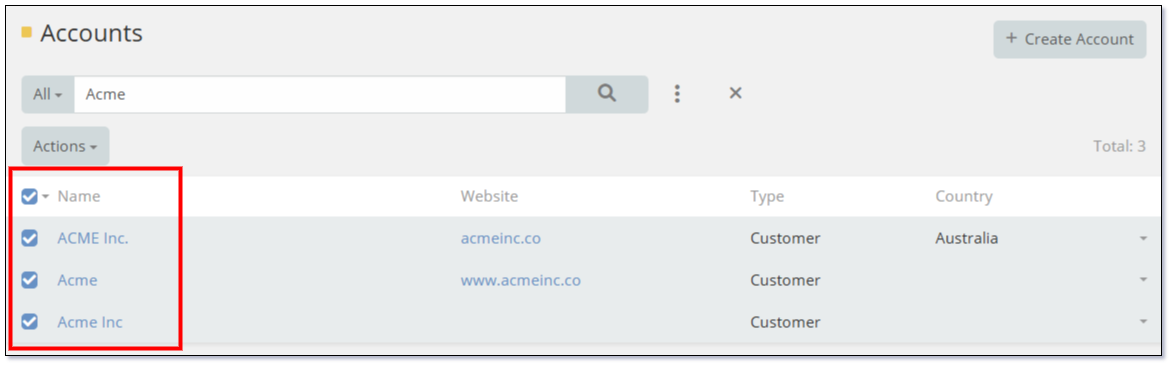
- Navigate to the List View of the relevant entity (e.g., Contacts, Accounts).
- Use the filter/search bar to locate the duplicate records.
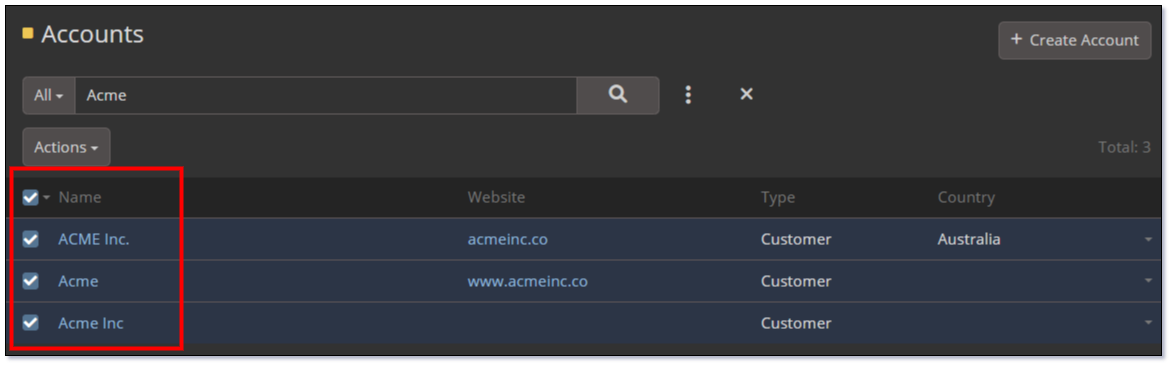
- Select the records you want to merge using the check box.
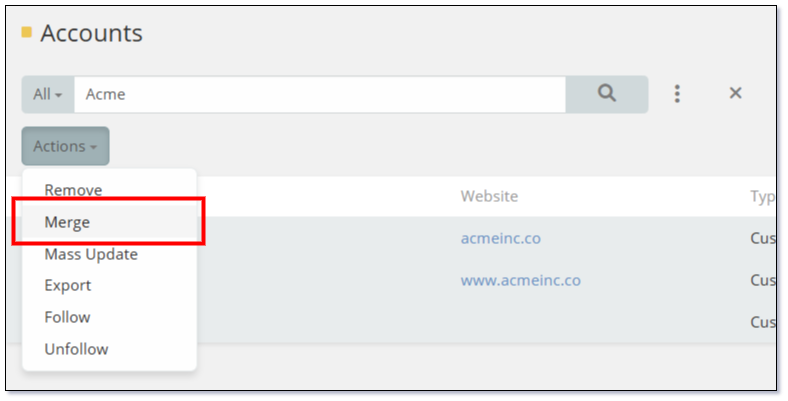
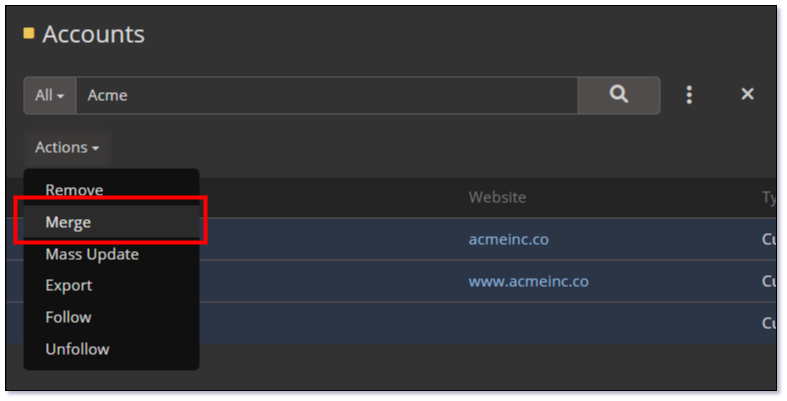
- Open the Actions menu and choose Merge.
Conflict Resolution
When initiating a merge, a conflict resolution dialog will appear. This interface allows you to:
- From the top row select the primary (surviving) record that will remain after the merge.
- Choose specific field values from each selected record to retain in the final merged record.
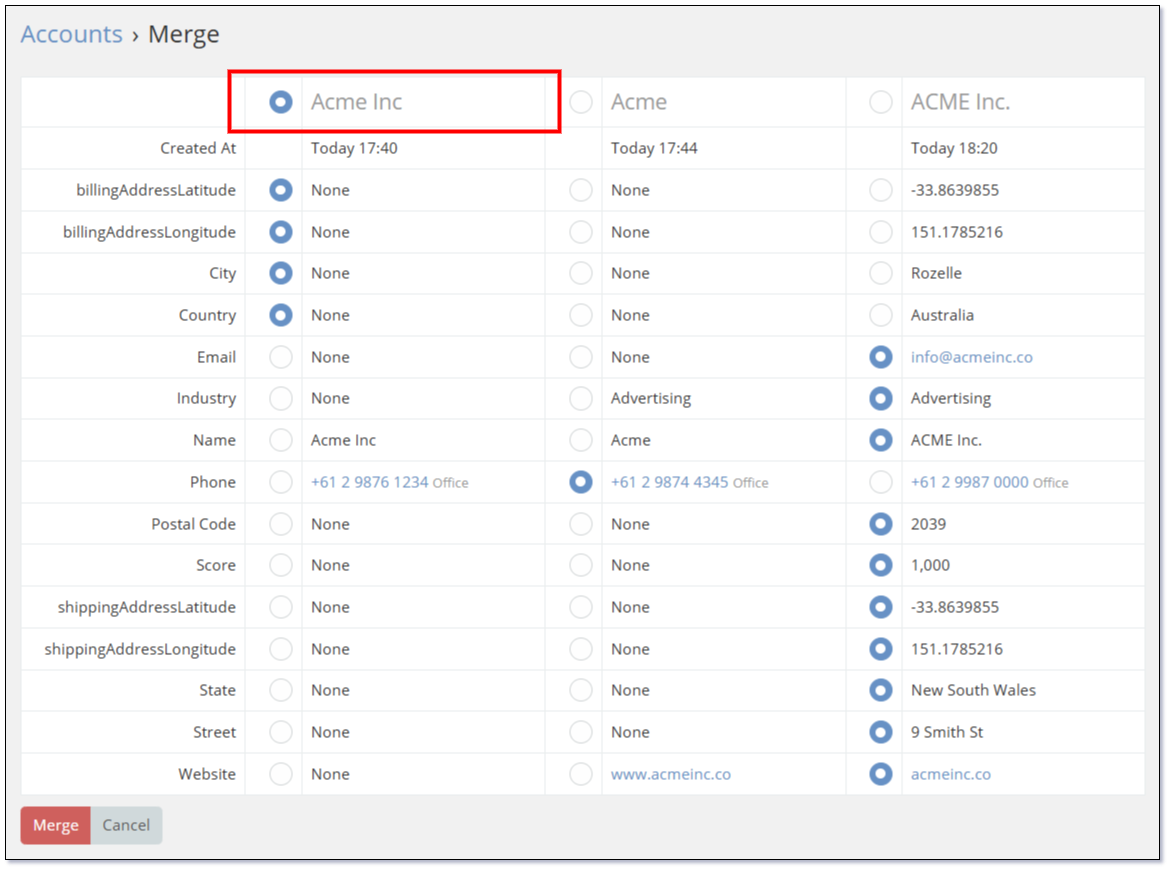
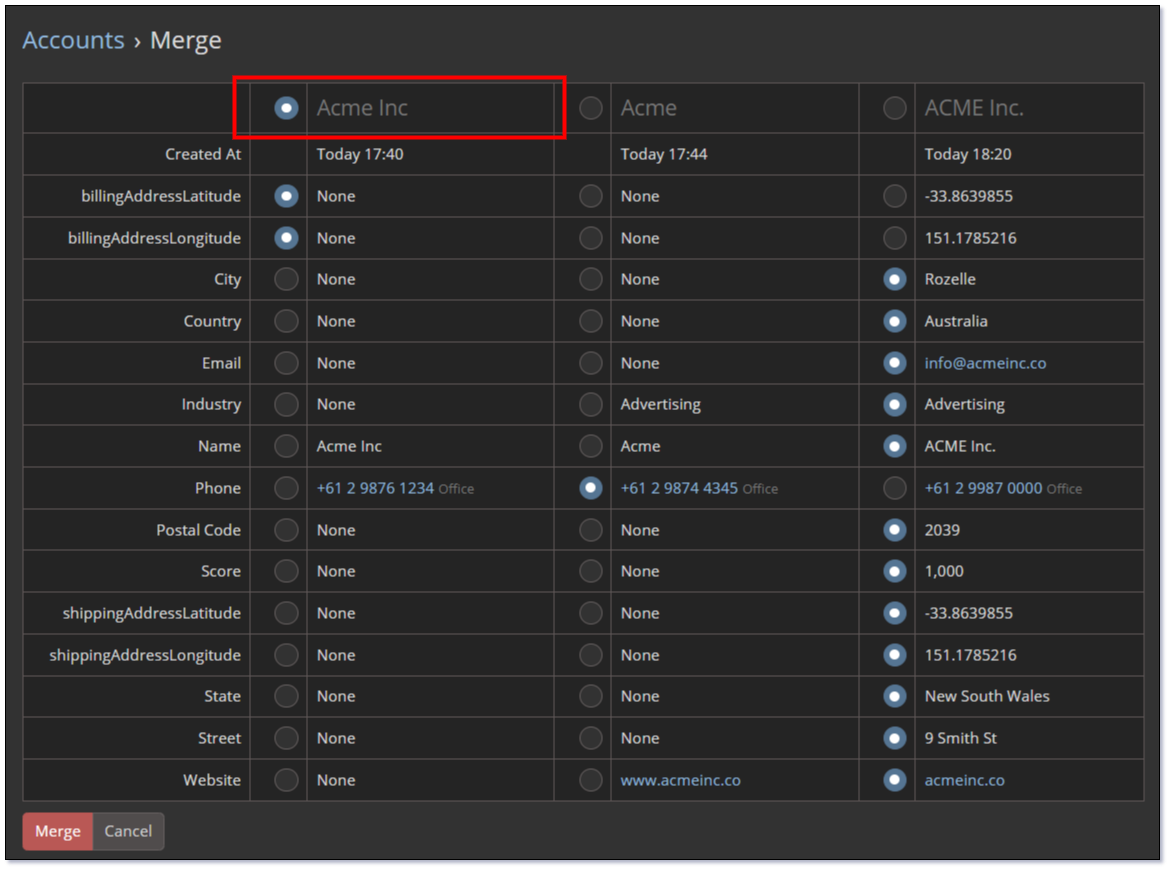
- The merge process will automatically combine values in multi-value fields such as phone numbers and email addresses.
Related Records and Dependencies
All related records from the merged entries (e.g., linked Contacts, Cases, or Activities) will be reassigned to the surviving record automatically. For example, when merging multiple Account records, all associated records will now be linked to the single surviving Account.
Final Outcome
Once the merge is completed, only one unified record will remain. All duplicates are removed, and the surviving record retains the selected values and all linked relationships, ensuring your data remains clean, consistent, and accurate.
Deep Links
Mythradon allows you to create filtered list views and share direct links to those filtered results. These Deep Links are especially useful when sharing dynamic record lists in emails, knowledge base articles, or other communications.
To create a Deep Link:
- Open the desired List View and apply the necessary filters.


- Click the
Copy Filter LinkLink button to copy a URL to your clipboard.


This URL can then be shared via email or other channels. When someone opens the link, Mythradon will automatically load the relevant list view and apply the same filters.
Access to records and fields is still governed by the user's role and team-based permissions.
Note
Deep Links can also be shared with Portal Users. However, you'll need to manually adjust the domain in the URL to match your portal's specific address.
See Also
- Mythradon Marketing
- Mythradon Sales
- Mythradon Service
- Mythradon System Administration
- Mythradon Tools