Mythradon Lead Capture Sample Form
Displayed below is a functional demonstration of a Web-to-Lead Capture form. This form is intentionally presented in its simplest HTML form, devoid of almost any CSS styling. The intent behind this HTML code is to offer a raw, unadorned sample that can be easily customised and styled to suit your specific needs.
The form utilises the JQuery JavaScript library to facilitate an AJAX (Asynchronous JavaScript and XML) submission. In this example the JQuery is sourced from the Google Content Delivery Network (CDN). If your website already incorporates JQuery, you may consider removing it from this form's code.
The resulting form will appear as follows:
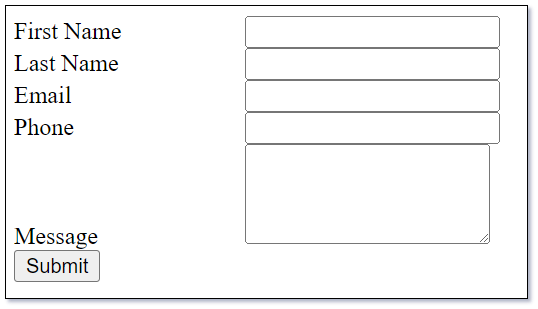
The provided sample form will store a lead from your website directly into your Mythradon system. To achieve this, please complete the following steps:
Step 1 – Create a Lead Capture Entry Point
Before you can use a web form to collect leads, you'll need to create a Lead Capture API Entry Point in Mythradon. This Entry Point acts as the connection between your website and Mythradon, allowing form submissions to be securely captured and stored as new Lead records.
To get started, follow the setup instructions in Lead Capture API Entry Point.
Note
The default sample form expects the following payload fields: First Name, Last Name, Email, and Phone.
Make sure your Entry Point configuration includes these fields to ensure compatibility with the sample form.
Step 2 - Copy Lead Capture Entry Point URL
Once you save the Lead Capture Entry Point, Mythradon will display the HTTP request details on the Lead Capture Entry Point right side panel as shown:


The URL value will need to be used in replacement of the action attribute used in the html code of step 3.
Step 3 - Create HTML Web Page
Using your text editor of choice, copy and paste the following html code into a new web page.
If additional fields are required, ensure to add them to the Payload Fields of the Lead Capture Entry Point.
Replace the text action="**YOUR LEAD CAPTURE URL**" on line 17 with the URL value from the previous step and save the file to your web server.
This form will submit the values to your Mythradon system via a HTTP POST.
Step 4 - Test the Web-to-Lead Form
Open the newly created web page in your browser. Complete the details in the form and click the Submit button.
When the record is successfully saved, a success message will appear: 'Thank you, we will get in touch.' The form fields will be reset, making it ready for another submission.
To check that the lead was created, select Leads from the main menu and confirm that the record you submitted on the form has been created.
Bootstrap Styling
For a more polished and responsive example, view the version that uses Bootstrap—a popular open-source front-end framework for building modern, mobile-friendly websites with pre-built styling and layout tools.
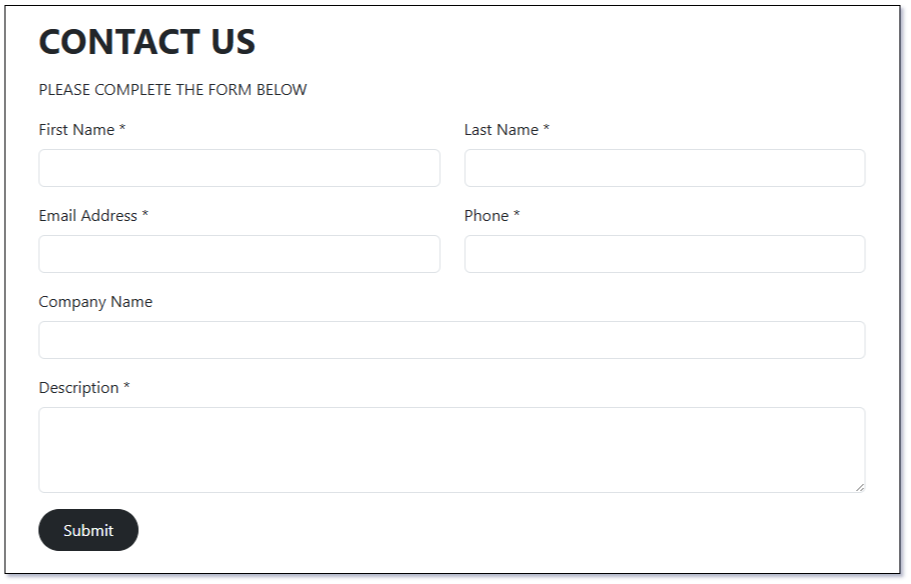
👉 Web-to-Lead Bootstrap Sample Form
See also
- Lead Capture Entry Point
- Mythradon Marketing
- Mythradon Sales
- Mythradon Service
- Mythradon System Administration
- Mythradon Tools